 FTPeach
Protect passwords and move settings
A bookmark remembers how to reach a server; a saved password lets FTPeach sign in without asking you to type that server password again. Start with saving a connection if you have not created a bookmark yet.
On this page
Know which password is being requested
| Password | What it is for |
|---|---|
| Server account password | Signing in to the server with your username. Your provider manages this account. |
| SSH key passphrase | Unlocking the private key you chose for SFTP. It is not the server account password. |
| FTPeach master password | Unlocking the vault of saved secrets when you have set up master-password protection. |
| Export file password | Opening saved passwords included in an exported file. You choose it when exporting. |
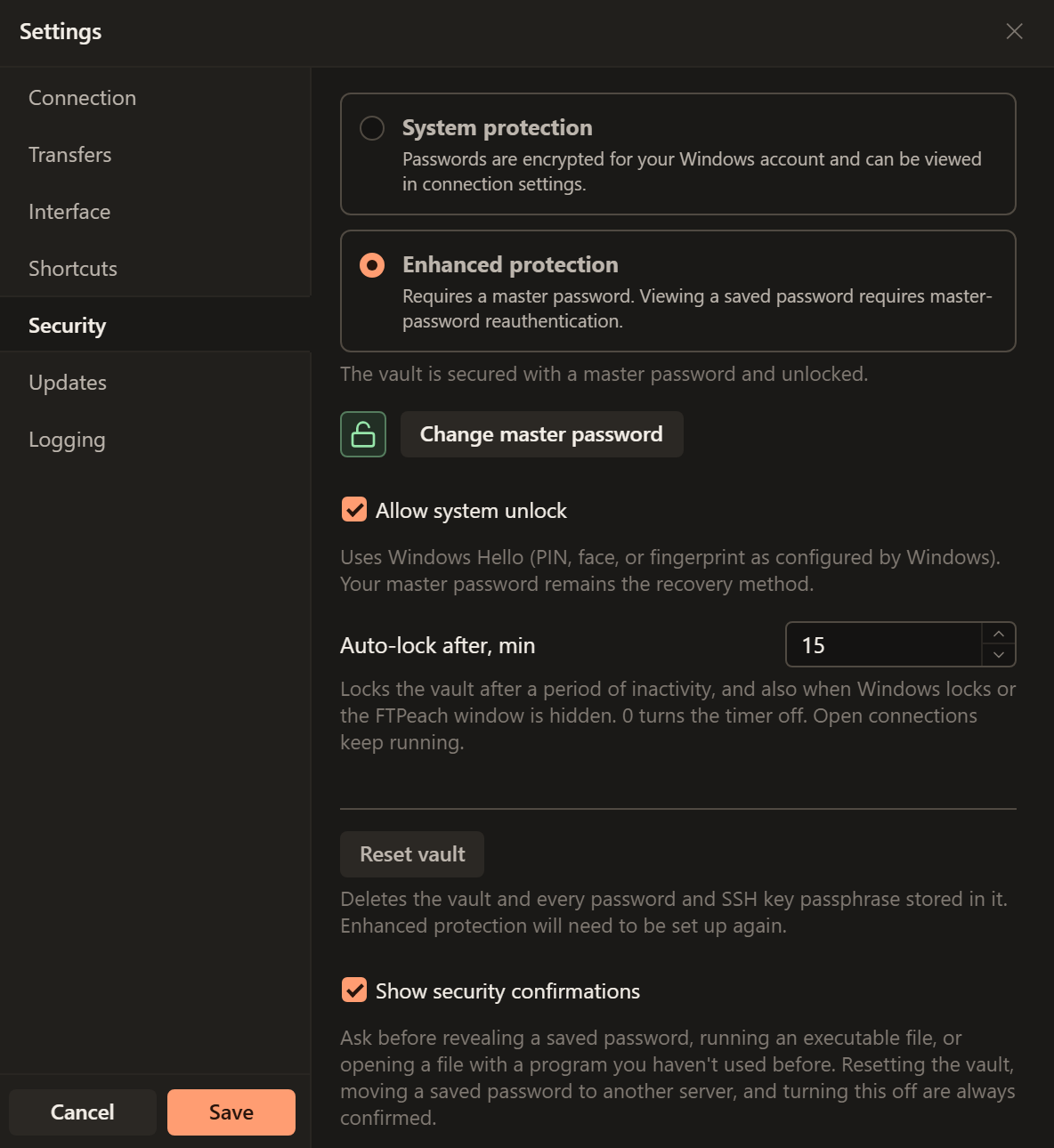
Edit > Settings > Security contains password protection and unlock settings.
Set up a master password
Open Edit > Settings > Security. System protection encrypts saved secrets for your Windows account. Enhanced protection uses a master password to unlock them, including when you carry a portable copy to another computer.
- Select Enhanced protection.
- Enter at least 12 characters in Master password, then repeat it in Confirm master password. Keep a safe record outside FTPeach.
- Select Protect saved passwords. Wait for the status to say the vault is secured and unlocked.
Lock, unlock or change the master password
In Settings > Security, the open-padlock button is Lock now. To unlock, enter Master password and select the closed-padlock Unlock button or press Enter. If Windows Hello is enabled, you can use the fingerprint button instead.
To change the password, unlock the vault and select Change master password. Enter Current master password, New master password and Confirm master password, then select Change password. The new password must have at least 12 characters. Changing it keeps the saved secrets.
After updating from FTPeach 0.5
FTPeach 0.6 keeps the vault in a new file. The first time you unlock it after the update, with the master password or Windows Hello, FTPeach moves your saved secrets there; the password and Windows Hello stay as they were. FTPeach 0.5 cannot open the vault after that, so do not go back to it.
If you forget the master password
If Allow system unlock was already enabled on this computer, try Windows Hello. If Hello is unavailable or refused, FTPeach asks for the master password.
Before starting over, make sure you can get your server credentials again
from their providers, or have a usable password-protected export. When you are
ready to discard the stored secrets, use Settings > Security > Reset vault.
Read the confirmation, type RESET and choose Delete vault. Set up protection
again and re-enter or import the credentials you still need.
If FTPeach says the vault is damaged
The vault keeps saved passwords in two files. If one of them goes missing, for example when a backup brought back only part of the FTPeach folder or a cleanup program removed a file, the passwords saved in the vault cannot be opened. Settings > Security then says the vault is damaged and offers Start over instead of the usual controls.
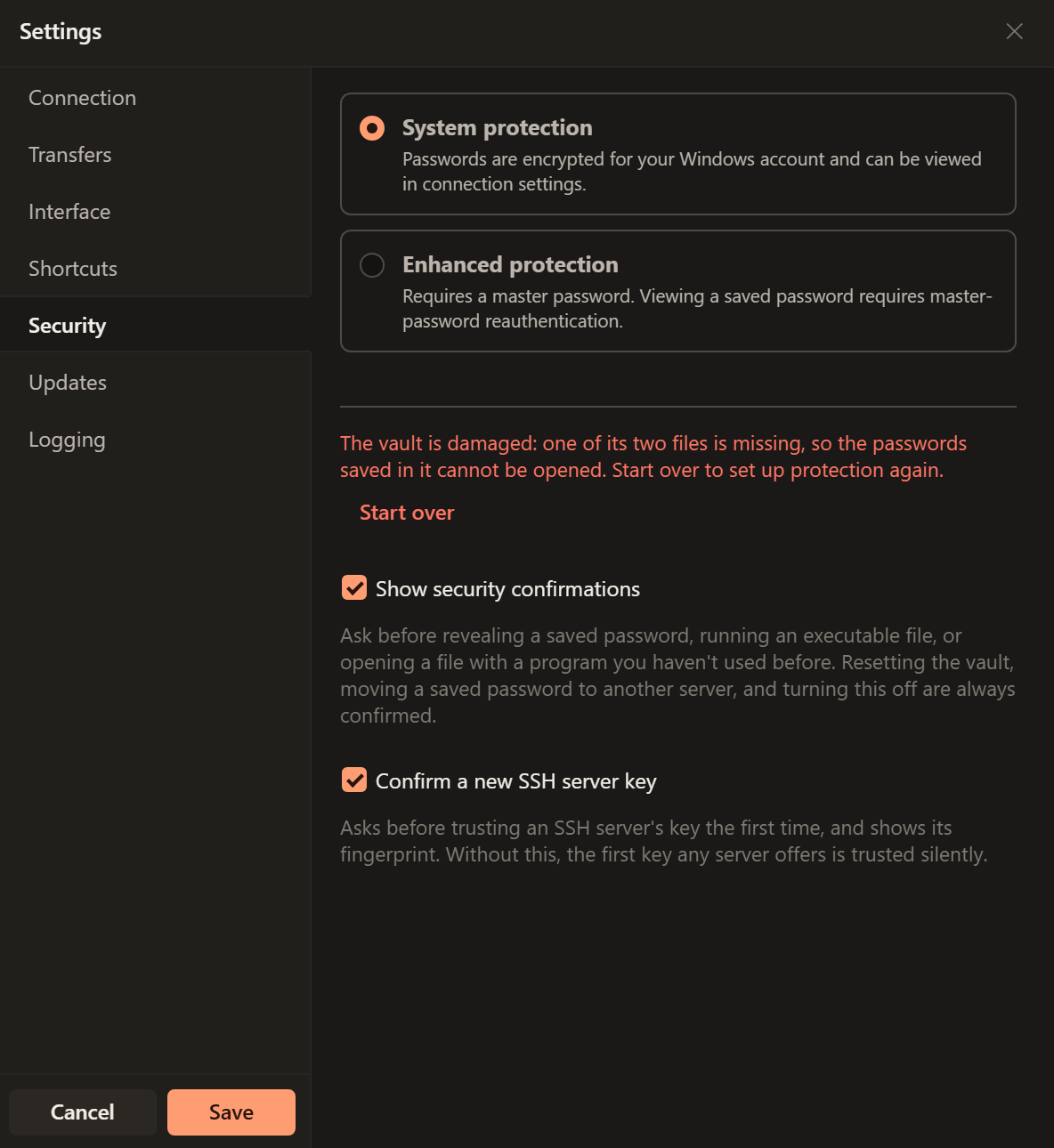
- Select Start over and confirm. The remaining vault file is set aside
with
.damagedadded to its name, not deleted, in case the missing file turns up in a backup. - Set up protection again, as in Set up a master password.
- Enter the passwords of your bookmarks again, or import them from a password-protected export.
Moving bookmarks and passwords to another computer
- On the old computer, open File > Export Settings or Export in Manage Bookmarks.
- Select Bookmarks. To carry their saved passwords and SSH key passphrases, select Include saved passwords and enter a file password of at least 12 characters twice. Leave this off if you will enter server passwords again.
- Select Export, complete the security confirmation and save the file.
- On the new computer, use File > Import Settings, choose the file and enter its file password. Import without passwords imports bookmarks alone.
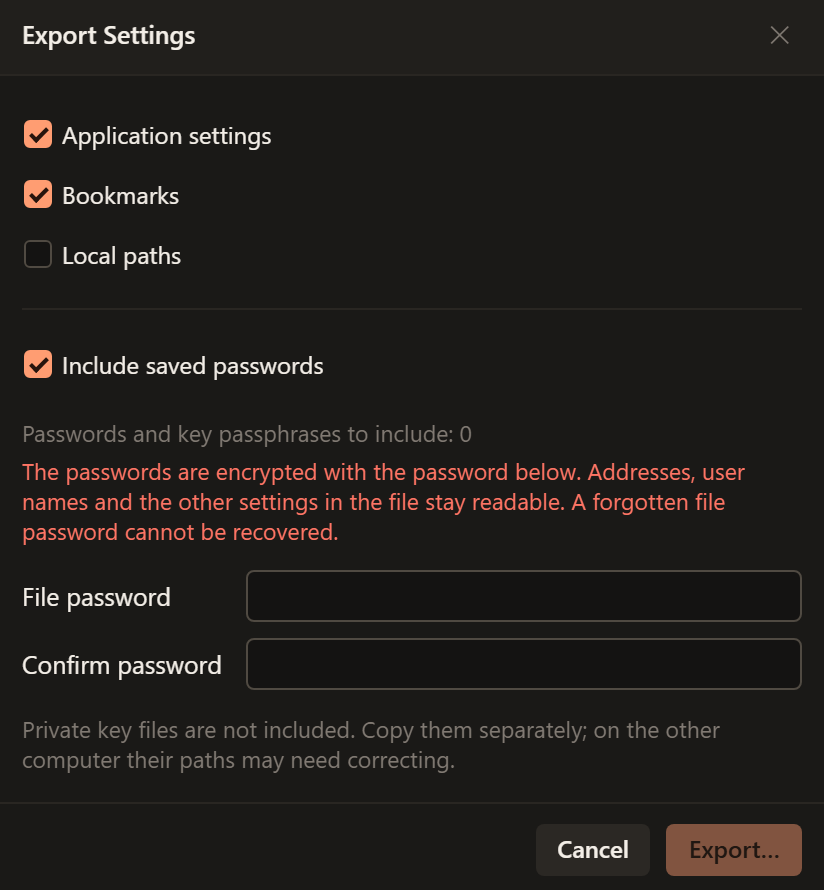
Exporting passwords asks for confirmation in a separate window. With enhanced protection, confirm with the master password even if the vault is already open. If Windows Hello is enabled, it is offered first; cancelling it shows the password field. If the password is incorrect, the dialog shows an error. Try again. If this computer cannot read some saved passwords, the dialog names the bookmarks and asks before exporting without those passwords.
Importing such a file asks for its password. A wrong one is asked for again; "Import without passwords" brings in the bookmarks alone. Passwords move between system protection and a master password in either direction.
Import warnings name bookmarks whose saved passwords could not be matched safely. Check those connections and enter their credentials again if needed.
Existing saved passwords are not replaced. Importing the file again with its password can fill in passwords omitted by an earlier import. Duplicate bookmarks that cannot be matched unambiguously are named in the result.
If import fails, read the result before trying again: it says if anything could not be undone.
A file exported without passwords imports as before. FTPeach 0.4.0 and older refuse a file with passwords, as they refuse any file with fields they do not know.
Unlocking with Windows Hello
Unlock the vault in Settings > Security, turn on Allow system unlock and complete the Windows Hello prompt. Keep the master password as your recovery method.
Windows Hello unlock is enabled separately on each computer. When the vault is moved or carried to another computer, it opens there with the master password, and Windows Hello can be switched on there as well. Switching it off on one computer leaves it on for the others.
If Windows loses the key, as after a reset of the computer's security chip, the switch shows off and can be turned on again.