 FTPeach
Editing remote files
Use this workflow to change a text file or configuration on a server with a program installed on your computer. FTPeach downloads an edit copy, a file on your computer that it watches for changes while the connection stays open; saving in the editor and sending that revision to the server are separate steps.
On this page
Open, edit and upload a change
Before editing an important file, download a backup to a separate local folder.
- Connect to the server and find the file.
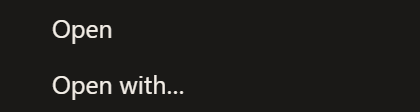
- Right-click it and choose Open to use its usual program, or Open with to choose another program.
- Make the change and save it in the editor.
- Return to FTPeach. When it asks whether to upload the changed file, choose Upload to send that revision to the server. Later closes the question without uploading.
- Once the upload is done, check the result where the file is used, such as on the website you are updating.
After Later, FTPeach asks again when you change and save the edit copy. If you want to send the existing revision without changing it, keep a copy in a folder you can find, open that folder in the Computer pane and upload the file to its original server folder. Check the filename and destination before approving replacement.
If you save again while an upload is running, FTPeach asks about the newer save after that upload finishes.
Recover unfinished edits
Edits that never reached the server stay on your computer, and FTPeach lists them at startup. To send one:
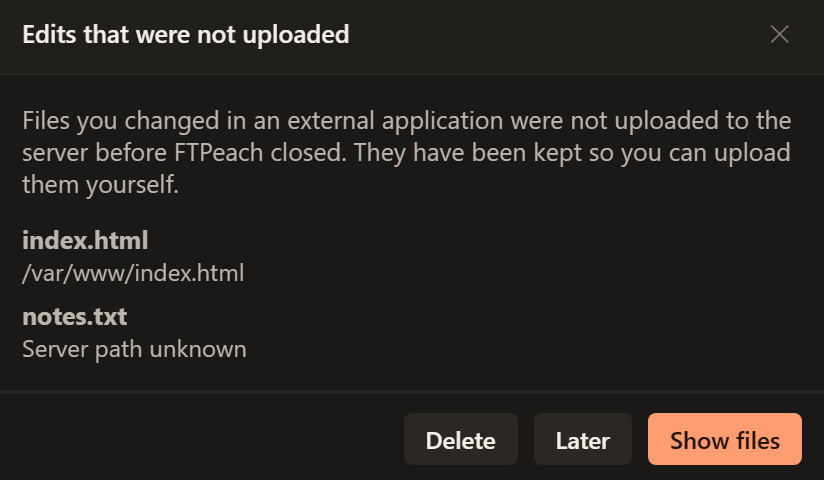
- Choose Show files and find the edit copy you need. Open it to check its contents, then copy it to a separate local folder you can find again.
- In FTPeach, open that folder in a Computer pane. In the other pane, connect to the original server and open the original file's folder.
- Check the server file before replacing it: someone else may have changed it since your edit. Download a separate backup if you need to keep that version.
- Select your saved edit copy and choose Upload to other pane. Use the original filename; if your backup copy has a different name, rename it before uploading. Follow Your first transfer for the upload steps.
- Wait for Done in Transfers and check the server result. Once you are satisfied, you can delete the recovered copy.
Show files sends nothing to the server; Delete discards the recovered work.
Editing server files in another program
Opening a server file again while its copy is open, from any tab connected to the same server and in any program, opens that same copy instead of downloading a second one, so two copies never overwrite each other's changes. Once the connection that opened it closes, the next open downloads the file again.
Copies you did not change are removed when the editing session is cleaned up. Changed copies are kept, including after an unexpected exit; use Recover unfinished edits to send them.