 FTPeach
Find your way around
The window has two file panes, with Transfers below them. "Other pane" in a command means the folder open on the opposite side, not a fixed upload or download folder.
On this page
Work with tabs
Use File > New Tab or Ctrl+T to open another workspace. Ctrl+Tab switches to the next tab; Ctrl+Shift+Tab goes to the previous one. Use File > Close Tab or Ctrl+W to close the current tab, and Ctrl+Shift+T to reopen the most recently closed tab. The last remaining tab stays open. Check running transfers before closing a server connection.
Open folders and find files

Read each pane from top to bottom: connection or computer, open folder, then files.
Double-click a folder to open it. Backspace goes up one directory level. Click a column heading to sort the listing. The file filter helps narrow the current list; use it after opening the folder you want to search.
Selecting files
In a Computer pane, right-click a file or folder and choose Show in File Explorer (Windows), Show in Finder (macOS), or Open containing folder (Linux), next to Open, to show it in the system file manager. The command uses only the entry you right-clicked, even when several entries are selected. Server panes do not have this command.
Click a file to select it. Ctrl+click adds or removes individual files from the selection; Ctrl+A selects the list. Right-click a file for the actions available there, or right-click empty space for folder actions such as Refresh and New Folder.
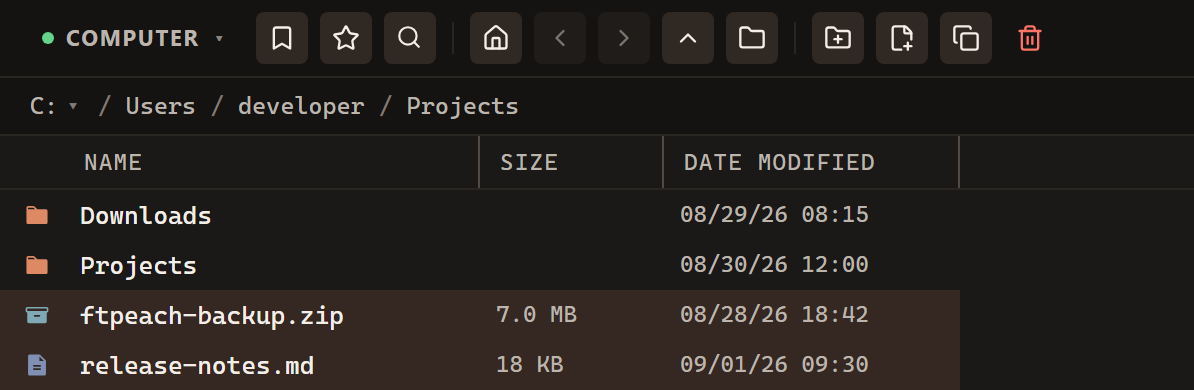
Highlighted rows are the selection.
You can also drag a selection rectangle inside the file list. It stays within that pane when the pointer crosses into the neighbouring pane.
When a folder's list is refreshed, with F5 or because a transfer finished there, the files still in it stay selected, and the arrow keys and Shift carry on from the same file. Files you select while the list is still loading are the ones that stay selected.
Follow work in Transfers
The Transfers list identifies the file, route and status of a job. Check the route when several servers are open. Running and paused jobs appear before completed ones, and a job keeps naming its server even after that connection closes. See Transfers and files for pausing and recovery.
Read error messages
FTPeach keeps up to three error messages visible, with the newest first. Another error from the same operation updates its message; when the list is full, a new message replaces the oldest. Close each message separately with its Close button. Password and secret warnings remain separate from these errors.
A successful transfer retry clears that transfer's error without hiding another operation's message, even when the two messages have the same text.
Useful default shortcuts
Use these with the file pane focused. If you have changed your keyboard shortcuts, your own bindings apply.
| Key | Action |
|---|---|
| Backspace | Go up one folder |
| F2 | Rename the selected entry |
| F7 | Create a folder |
| Shift+F7 | Create a file |
| F8 | Copy the selection to the other pane |
| Ctrl+C, then Ctrl+V | Copy, then paste into the destination |
Appearance
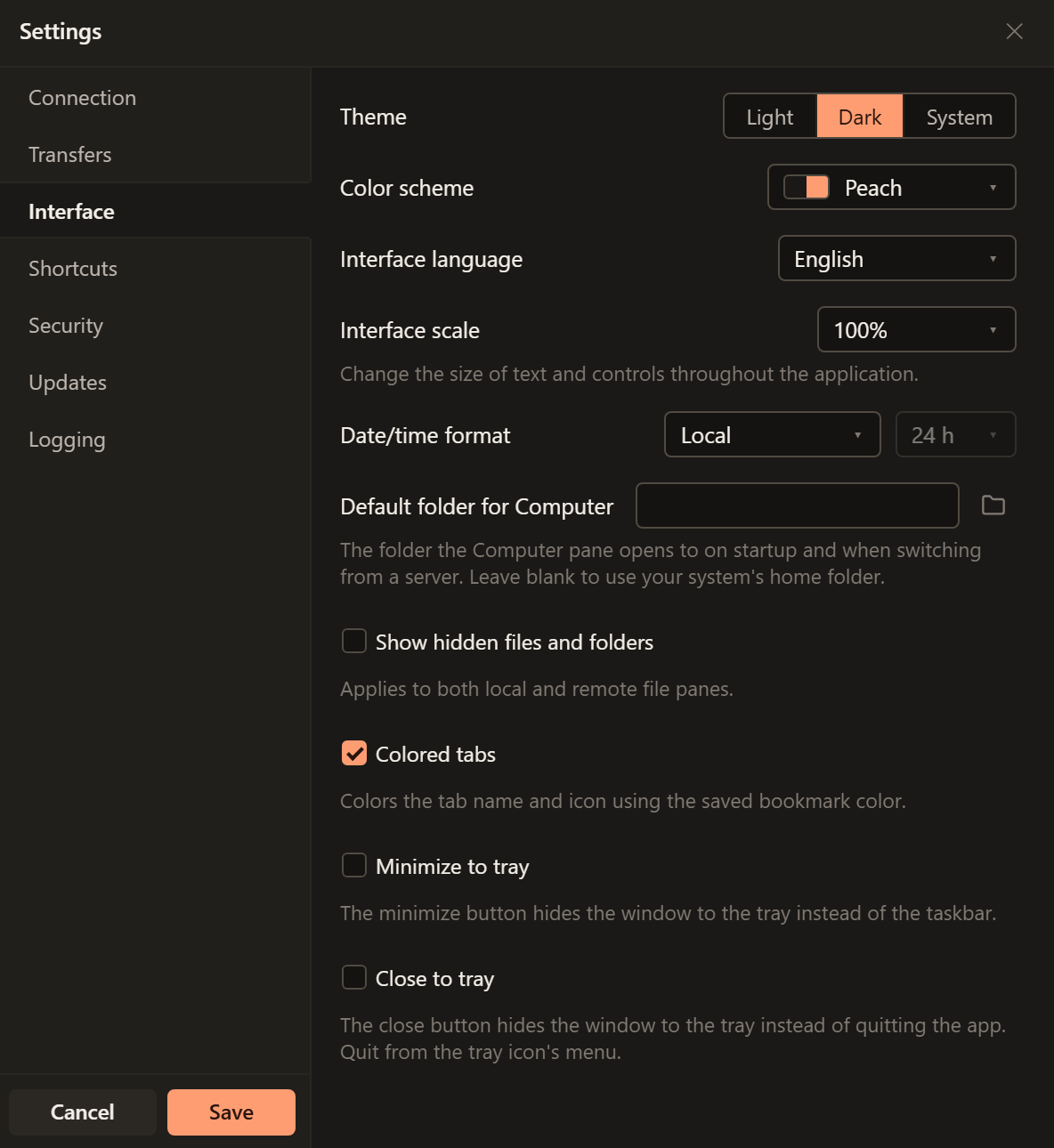
Open Edit > Settings > Interface to find the appearance controls shown here.
Choose Theme (light, dark or system) and Color scheme separately. Changes preview immediately; Save keeps them and Cancel restores the previous appearance. Use Interface language to choose your language and Interface scale to make text and controls larger or smaller, then select Save.
Transfer states keep the same meaning across color schemes: orange for active transfers, yellow for paused, green for completed, red for failed and grey for cancelling, queued or stopped. Connection indicators and the status bar use the same colors.
Everyday settings
Open Edit > Settings, select the category, make your changes and choose Save. Use Cancel to discard changes.
| Task | Where to go |
|---|---|
| Limit transfer speed | Transfers > Speed limit, KB/s. Enter a limit; 0 or blank means no limit. |
| Limit simultaneous transfers | Transfers > Concurrent transfers. Enter a count; 0 or blank means no limit. |
| Decide what happens to matching filenames | Transfers > On name conflict. Choose Ask, Overwrite or Skip. Start with Ask if you want to review replacements. |
| Change a keyboard shortcut | Shortcuts. Click its current key combination and press the new one. Review any conflict warning; Reset to default restores one binding. |
| Connect through a proxy | Connection > Use a proxy for connections. Enter the type, host, port and credentials supplied by your administrator. Save and reconnect. |
For proxy troubleshooting, Test proxy checks the proxy against the host and port in Test against.
Check for updates
Use Help > Check for Updates or Edit > Settings > Updates > Check Now. The Update automatically setting controls automatic updates. Finish your work before selecting Install update in the status bar. If checking fails, keep using the current version and try again when the network is available.