 FTPeach
Your first transfer
This walkthrough uploads one file from your computer to a server, then explains how to download a file in the other direction. For a first attempt, use a small, non-sensitive file with a new name so there is no existing file to replace.
On this page
Before you begin
Download FTPeach from the official website. Choose the installer for a regular installation, or read Portable version if you want to keep the application and its settings together in a folder.
Have these details ready. Your hosting provider or server administrator supplies them; FTPeach cannot determine your account password or destination folder.
| Detail | What to ask for |
|---|---|
| Protocol | FTP, FTPS, SFTP or WebDAV |
| Address and port | The server hostname and port, or the full WebDAV URL |
| Account | Username and password, or the SSH key required for SFTP |
| Destination | The folder where your account is allowed to upload |
| Server identity | For SFTP, the expected host key fingerprint |
1. Connect to the server
Keep one pane on Computer. At the top of the other pane, click the source button and choose Server to open the connection form. You can use that same menu to switch a pane back to Computer.
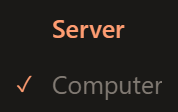
In the connection form, choose the protocol you were given and enter the Address, Port, Username and Password your server uses. Select Connect, the power-symbol button next to Server.

For SFTP, compare the first host key prompt with the fingerprint supplied by the administrator before trusting it. If it differs, stop and check with them. See Connecting safely.
A successful connection displays the server's folder listing. If that does not happen, use Troubleshooting before trying to transfer a file.
2. Open the source and destination folders
In the computer pane, find your test file. In the server pane, open the folder your provider told you to use. Double-click a folder to open it. Check the destination path before you go on: connecting to the right server is not the same as choosing the right folder on it.
3. Upload the file
Select the file in the computer pane, right-click it and choose Upload to other pane. You can also drag the selection to the server pane. Dropping on the listing's background uses the currently open destination folder.
If asked about an existing file, check its name and destination before allowing replacement.
4. Check the result
Look in Transfers for the file and its Route. Wait for Done; Upload and Queued are not completed transfers. If it failed, read the error and follow Troubleshooting.

Some columns are hidden in this example.
Look for the file in the server pane. To be sure it arrived as you meant, download it to another folder on your computer and open it.
Download a file instead
Open the destination folder in the computer pane. Select a file in the server pane, right-click and choose Download to other pane. Check the route and result just as you did for the upload.
Next, save a bookmark, learn how to select several files, or edit a remote file.