 FTPeach
FTP connections
Use FTP only when your provider requires an unencrypted connection. Plain FTP sends your username, password and file contents without encryption. FTPeach shows a warning beside the protocol selector. If the server offers an encrypted option, use FTPS or SFTP with the details your provider supplies.
On this page
Connect to an FTP server
Get the FTP hostname, port, username, password and destination folder from your provider. The address of your public website may not be its FTP hostname.
- Open the source menu at the top of a pane and choose Server.
- Choose FTP. Enter the server hostname in Address, then its Port. Use the provider's port rather than guessing from a website URL.
- Enter Username and Password, then select Connect.
- When the folder listing appears, open the folder your provider named. Try a small file with Your first transfer before a large upload.

The warning marks plain FTP.
To reuse the connection, save a bookmark.
Passive and active mode
FTP uses a connection for commands and separate connections for folder listings and file contents. This is why a successful login does not always mean files can be listed or transferred. These modes apply to both FTP and FTPS.
| Mode | Who opens the data connection? | What to check when it fails |
|---|---|---|
| Passive | Your computer connects to a port offered by the server. | Ask the administrator whether the server's passive ports are reachable through its firewall and router. |
| Active | The server connects back to your computer. | The server must be able to reach your computer through its firewall and router. Use only when your administrator has arranged this. |
Start with passive mode. In Edit > Settings > Connection, leave Active FTP mode (instead of passive) unchecked. If the administrator specifically asks for active mode, enable it, choose Save, then reconnect. Changing the setting does not switch an existing connection.
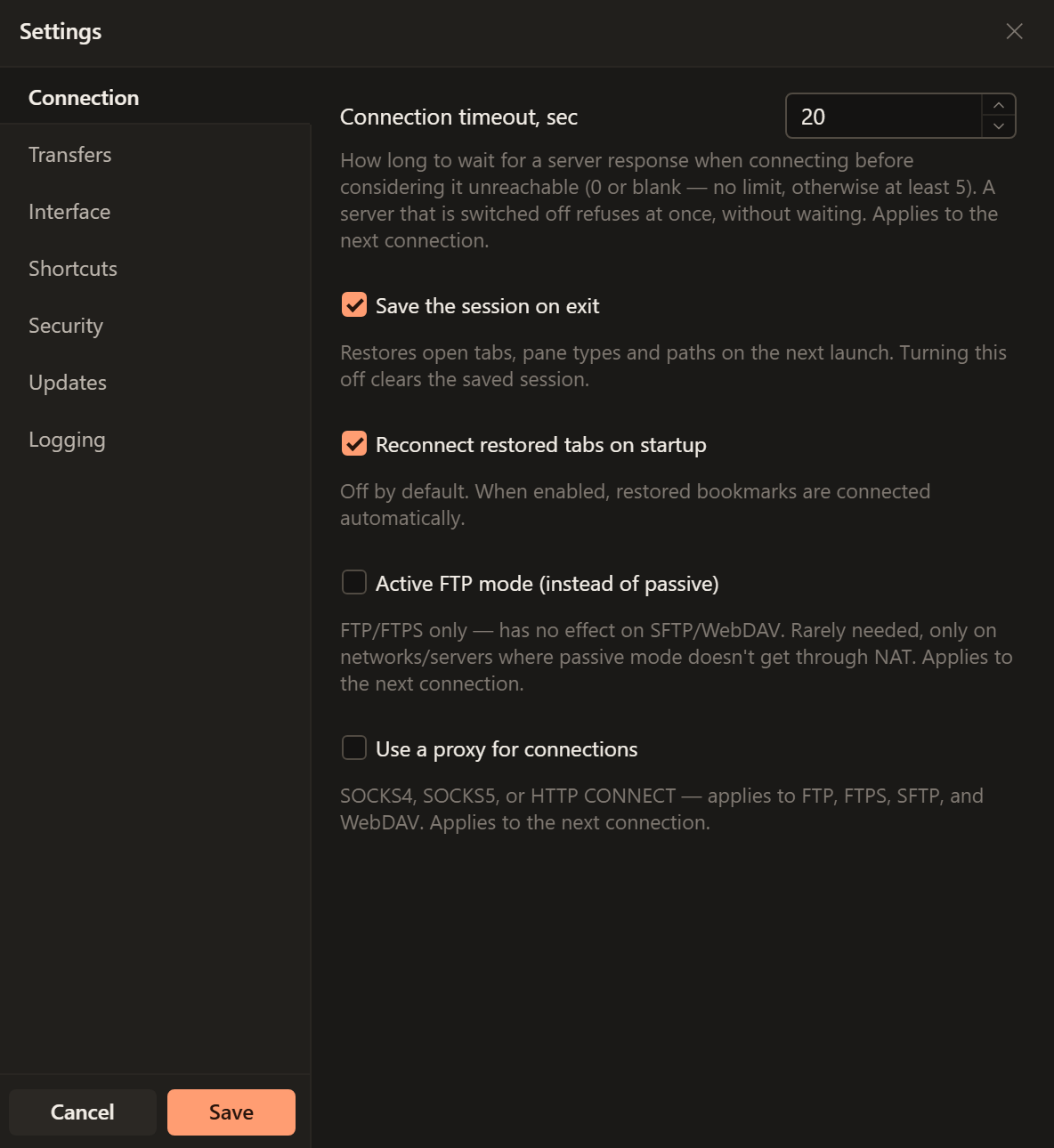
An unchecked Active FTP mode means passive mode. The setting is unavailable while a proxy is enabled; keep passive mode for proxy connections.
Active mode is not a general cure for a blocked transfer: it needs an incoming connection to your computer. See the networking reference for deployment details.
When FTP does not connect or list files
| Message or symptom | Next step |
|---|---|
| Incorrect username or password. | Confirm the FTP account and whether the provider actually requires FTPS or SFTP. |
| The server refused the connection. Check the address and port. | Check the FTP hostname and port and ask whether the service is running. |
| The server isn't responding. Check the address, port and network. | Check server availability, VPN requirements and network access. |
| Login appears to work, but the listing or transfer stalls | Check the data-connection mode above and ask the administrator to check the relevant firewall and router ports. |
| The server couldn't connect back in active FTP mode. Try passive mode. | Turn active mode off, save and reconnect, unless your administrator requires and can configure active mode. |
| You don't have permission for this operation. | Confirm the destination folder and the account's permissions. A successful login does not grant access to every folder. |
For a failed file operation, follow transfer troubleshooting. Use the log when asking for help, removing private details before sharing it.